Migrating a WordPress from one server to another with Same Domain Name
I recently moved one of my WP websites to a new host. The old host was Japanese and the new is American. But the site's URL remains the same. No one would ever notice the change until he checks the hosting provider. Migrating a WP website from one host to another with the same domain name is indeed quite possible. It involves only a few tasks that have to be handled carefully.
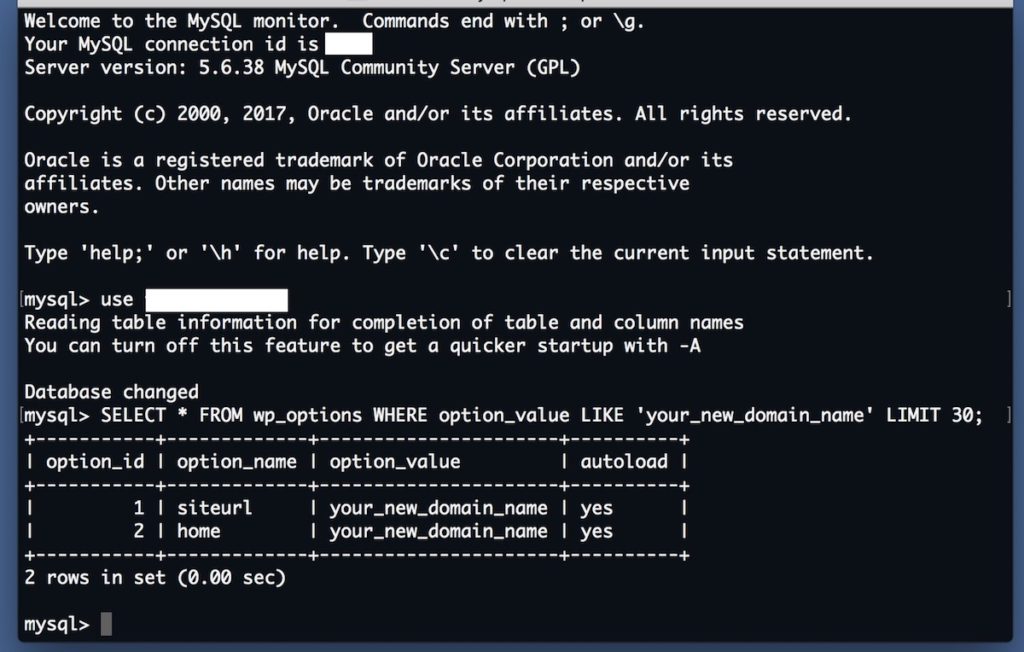 Once you succeed in editing the database, you will not be able to access your new WP site until you assign your domain to your new host. Keep that in mind.
Set up your new hosting account
If you switch to a different hosting plan of the same web host, please skip this part. I assume most of you will switch to another host. You first need to purchase a new hosting plan and set it up before starting migration. Once you've set up your web hosting, you will be able to- create a database
- install a new WordPress, and/or
- connect to the server using a command line interface.
Export & Import your WP data
You can download your old WP data without any plugin. Login to your old WP Dashboard and move to Tools Export screen. The Export screen looks like this. When you click "Download Export File" on the screen, an XML file will be generated and downloaded to your computer. The file name should look likeYOUR_WP_SITE.wordpress.YYYY-MM-DD.xmland contains your posts, pages, comments, custom fields, categories, and tags. In other words, it does not contain your Plugins and Settings. You need to manually install new plugins and adjust all the settings after importing your old WP data into the new website. The XML file does not contain your old WP theme files, either. They can be found under
YOUR_WP_ROOT/wp-content/themes/on your old host so you can transfer the theme files from your old host to your computer and then from your computer to your new host using an FTP client. Now you have every content you can move and think about installing a WP onto your new host.
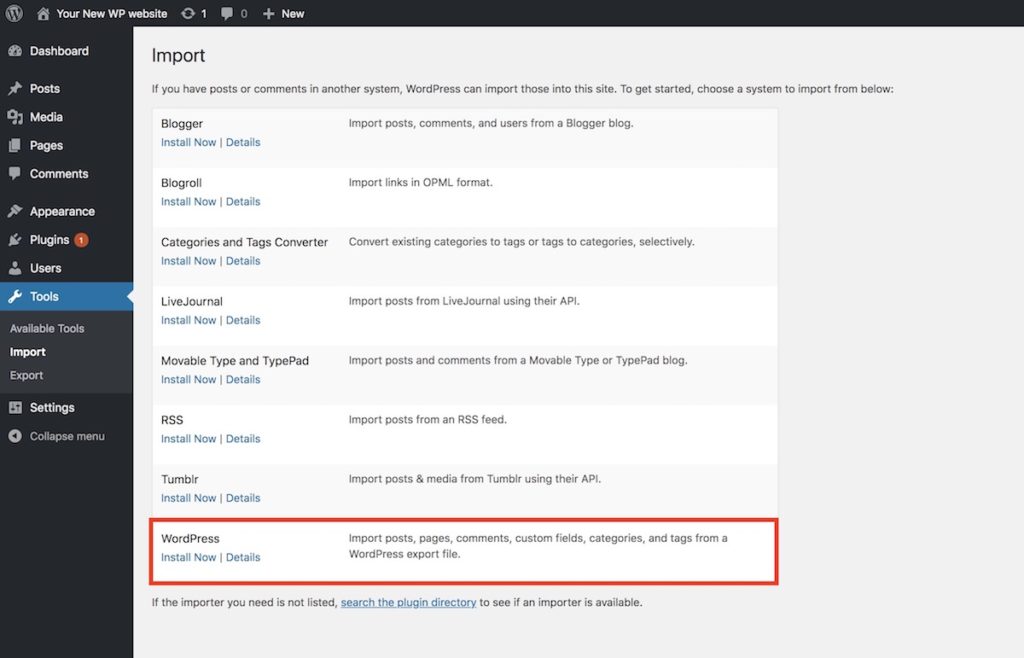 You will then be asked for choosing an XML file to upload. Press "Choose file" button, find the exported XML file and then hit "Upload file and import".
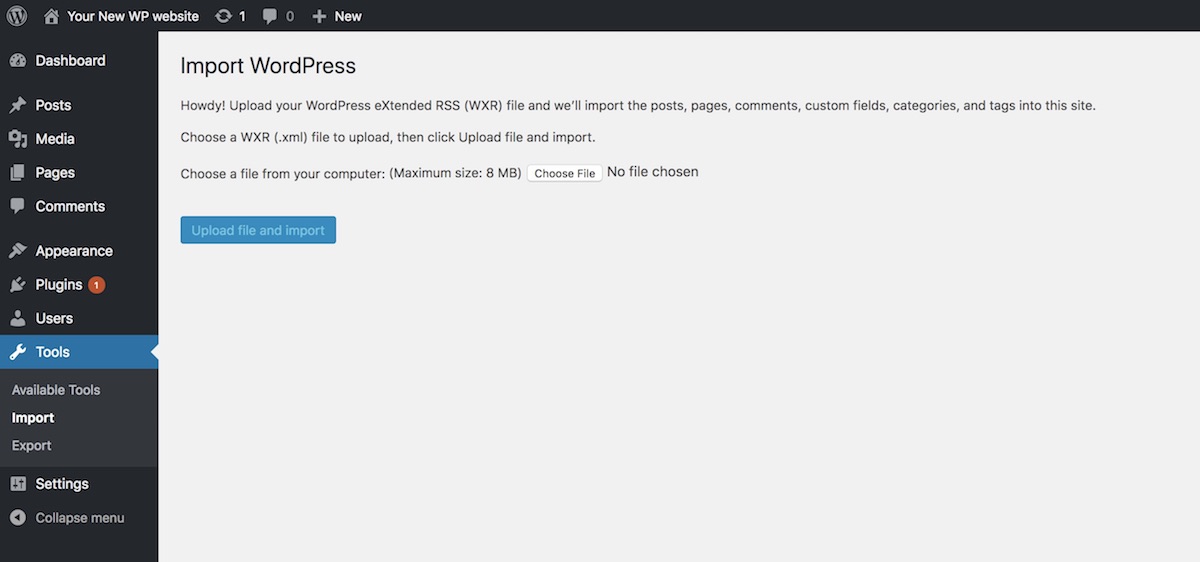 Your old posts, pages, comments, etc. will be imported into your new WP site. Check and adjust your Permalinks, Plugins, Theme and other settings. It is also recommended to backup your new WP database at this point. You are going to edit the database. And if an unexpected error occur during editing, the WP will stop showing its entire posts and pages.
Edit your new WP database
If your new WP site's domain name is set to the previous one, please skip this part. Otherwise you need to edit your new WP database. Access the database using command line or phpMyAdmin. Select the "wp-options" table and find "siteurl" and then change "siteurl" option_value variable from the current one to the domain name of your old WP site. And then find "home" and assign the domain name to its option_value variable, too.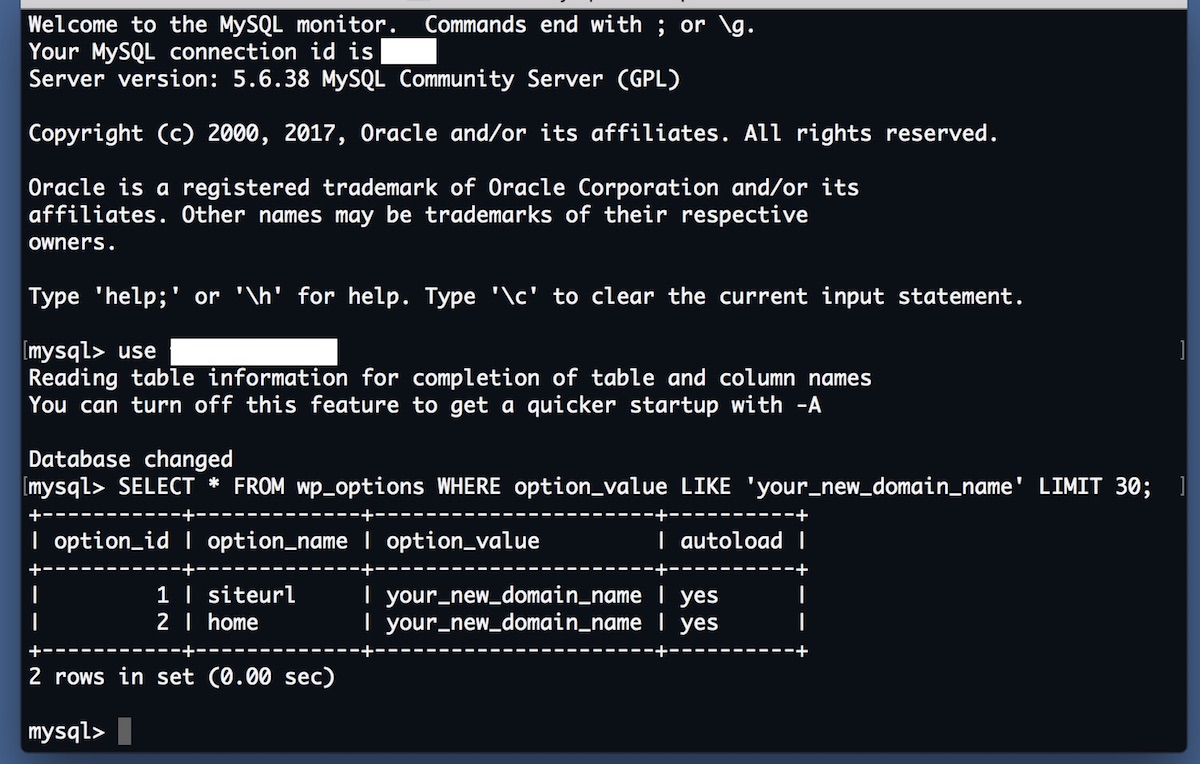 Once you succeed in editing the database, you will not be able to access your new WP site until you assign your domain to your new host. Keep that in mind.
Comments
No comments yet. Leave the first one.
Leave a comment