『Node.js 超入門』 一癖あるも良心的な入門書

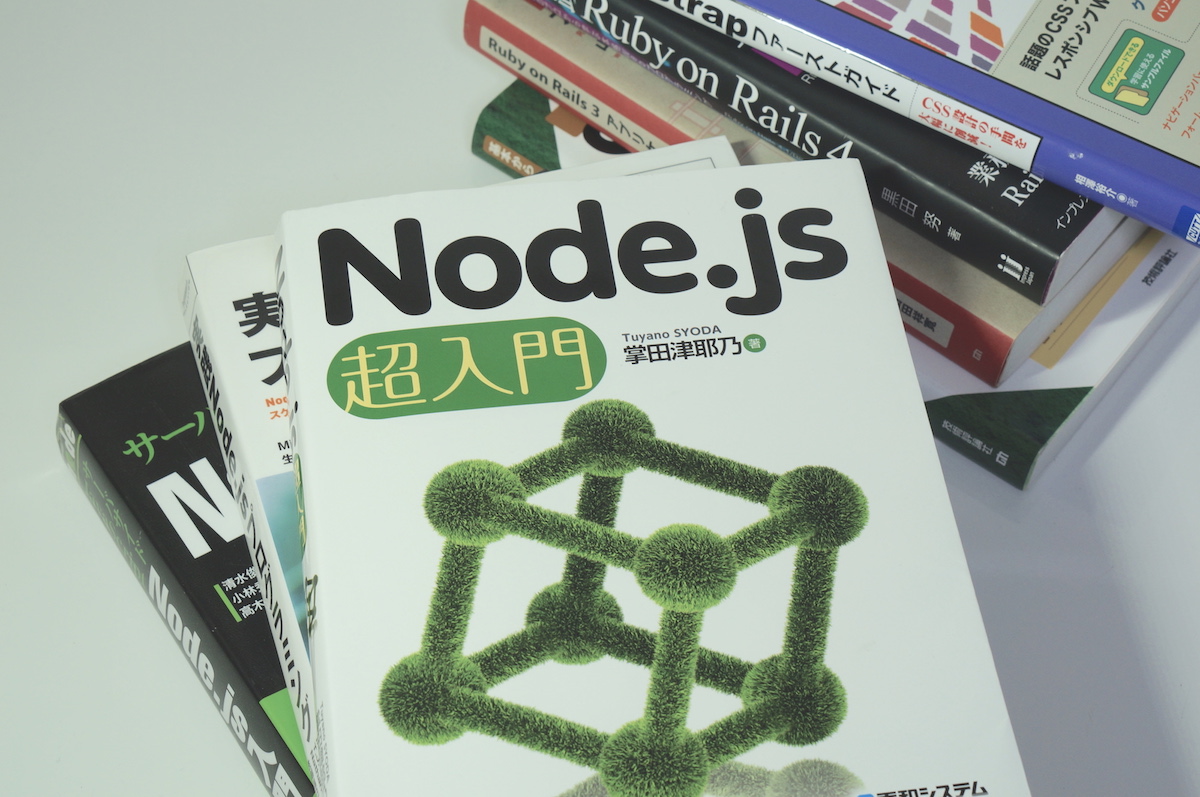
Node.js に関する新しい書籍が出版されているのを書店で目にしたので購入して一読してみました。

本書の内容は書名どおり Node.js の導入とサンプル・アプリケーションの説明に重点が置かれており、スケーラブルなアプリケーションやデプロイメントについては触れられていません。

当然、Nginxとの連携やサーバ環境構築などについての言及もありません。

しかし、サンプル・アプリケーションではクッキーやセッションの使用、データベースとの連携など、アプリケーション作成において多くの人が知りたいと思う部分がきちんと記述されており、プログラムとして問題なく動作します。

Node.js に関する書籍の発行数が少ないこともあり、現行の環境でサンプル・アプリケーションが実際に動かして使える入門書の存在は貴重です。


本書では入門者を対象としていることから、Windows OS 上にてアプリケーションを実行する方法が書かれているのですが、他の OS でも全く問題なくアプリケーションを実行できます。

私の開発環境は下記の通り Ubuntu (開発環境として書籍では言及されていない OS) ですが、Visual Studio Code も含めて問題なく本書の開発環境を再現できました。

もっとも使い慣れたテキストエディタの方が作業効率が良いので VSC は、動作確認ぐらいしかしていないのですが。

しかし、せっかく VS Code を入れるのに ESLint でデバッグしないのでしょうか。これなら本当に Vim でいいじゃん。

DISTRIB_DESCRIPTION “Ubuntu 16.04.4 LTS”
js v8.11.1
node v8.11.1
npm 5.6.0
express 4.16.0
sqlite3 3.22.0
Visual Studio Code 1.22.2

なぜ SQLite3 がここに挙げられているのか? と思った方は、とても鋭い認識力をお持ちです。

本書のサンプルアプリケーションでは MongoDB や CouchDB といった JavaScript のデータベースではなく SQLite を用います。

入門者なら最初はSQL対応のDBを知るべきという著者の考え方が反映されている部分で、その主張自体はとても共感できるものですが、 Node.js を興味を持つ人で SQL に一切触れたことがない人はどれくらいいるのか判断が難しいところです。

個人的には NoSQL の独自クエリは大嫌いですし、サーバ接続の問題からアプリケーション起動に失敗する等の無用のトラブルを避けるという、入門書ならではの前提を考えると仕方がないかなと思えます。

またサンプルアプリケーションへのデータベースの導入時は、文字リテラルでクエリを手書きしていて閉口しますが、これも著者の考えあってのものであり、次章からは O/RM ツールが導入されますので安心してください (O/RMという用語自体は使われずにデータベース用のモジュールと記述されます)。

本書中では重要なポイントとされつつ、DBやSQLについては (Node.js という主題から外れるという事情もあって、詳しくは) 各自学習してみてくださいで終わってしまうので、本当に DB や SQL に触れたことがない人は他の書籍も参考にされた方が良いです。


SQL 第2版 ゼロからはじめるデータベース操作 (プログラミング学習シリーズ)


ここまで述べてきただけでも本書の役割や性格が見えてきたと思われるのですが、長所だけではなく短所ももちろんあります。

その中でも最も致命的なものは、サンプルアプリケーションのソースコードが目的のアプリケーションや章毎に整理されておらず、読み進めるごとに煩雑で読みづらくなっていくことです。

第2章で作成したアプリケーションを一部改編して第6章まで再利用していく構成になっており、進行時点においては既に使われていないモジュールがそのまま残されたり、必要以上にソースコードが複雑で読みづらくなります。

Node.js やフレームワークの初見での分かりづらさは、主にファイルや関数の数の多さと、(自分で設計したプログラムではないために) 「どの関数で何が行われているのか」を把握しづらい点にあります。

その点、本書では — 少なくとも初期の段階では — どこに何があり、どの関数が何が行われているのかという見通しがよく、それだけでも入門書として大きな価値があります。

それがソースコードの書き換えを行うごとに見通しが悪くなっていき、内容自体の複雑化と併せて終章に向かうに連れて苦痛になっていきます。

命名規則や開発効率の点からも良くありません。

私の場合はアプリケーションの目的が変わった時点で、プロジェクト (ディレクトリ/フォルダ) を新規に作成して対応しましたが、もし本書の中であらかじめサンプルアプリケーションやソースコードが整理されていて、個々のアプリケーションが単体でも実行可能であれば学習効率が大きく向上したことは間違いありません。

それでもアプリケーションとして、現行の環境できちんと動作するところは皮肉や嫌味ではなく特筆すべき点です。

例外処理を入れた方が良さそうと言った理由から個人的に書き換えたくなるところはありましたが、サンプルのソースコードをそのままアプリケーションとして実行してエラーとなったのは、一部の ejs ファイルの form method ただ1点だけです。

それも下記のようにパスを書き換えれば問題なく実行できます。

<form method="post" action="./edit">

サンプルが正しく実行できるという安心感はとても重要で、だからこそソースコードを自身で改編して試行錯誤しながら上手くいく方法を模索できます。

本書から学べることは本書に書いてあることだけではない訳で、自分で console.log を付け加えて変数の中身を調べたり、関数を付け加えてサンプルとの出力の違いを確認したり、データベースを MongoDB に置き換えても構わないわけです。

上述のように一癖ある本書ですが、 Node.js の貴重な入門書であり、他の関連書籍と内容があまり重複しないという点でも一読してみて良かったなと思えました。

追記: node.js の開発をやるなら nodemon を入れておくと頻繁に再起動しなくて済むので楽です。


Node.js超入門


Migrating a WordPress from one server to another with Same Domain Name

I recently moved one of my WP websites to a new host. The old host was Japanese and the new is American. But the site’s URL remains the same. No one would ever notice the change until he checks the hosting provider. Migrating a WP website from one host to another with the same domain name is indeed quite possible. It involves only a few tasks that have to be handled carefully.

Set up your new hosting account

If you switch to a different hosting plan of the same web host, please skip this part. I assume most of you will switch to another host. You first need to purchase a new hosting plan and set it up before starting migration. Once you’ve set up your web hosting, you will be able to

  • create a database
  • install a new WordPress, and/or
  • connect to the server using a command line interface.

I list these actions, because they involve important functions for managing your WP site. And the functions are sometimes disabled by default. You may be required to get your account verified to use them. Some American hosts ask you to make a phone call. It’s no problem for US citizens or someone living in the United States. But if you are/live outside North America, you may need to be ready in advance for the questions you will be asked. Most US hosts do not have international toll-free numbers; you’ve got to make an international phone call at your own expense. In my case, the verification call lasted almost 9 minutes. So it is a good idea to write down your hosting account, invoice number and other information before you make the call.

Export & Import your WP data

You can download your old WP data without any plugin. Login to your old WP Dashboard and move to Tools Export screen. The Export screen looks like this. When you click “Download Export File” on the screen, an XML file will be generated and downloaded to your computer. The file name should look like

YOUR_WP_SITE.wordpress.YYYY-MM-DD.xml

and contains your posts, pages, comments, custom fields, categories, and tags. In other words, it does not contain your Plugins and Settings. You need to manually install new plugins and adjust all the settings after importing your old WP data into the new website. The XML file does not contain your old WP theme files, either. They can be found under

YOUR_WP_ROOT/wp-content/themes/

on your old host so you can transfer the theme files from your old host to your computer and then from your computer to your new host using an FTP client. Now you have every content you can move and think about installing a WP onto your new host.


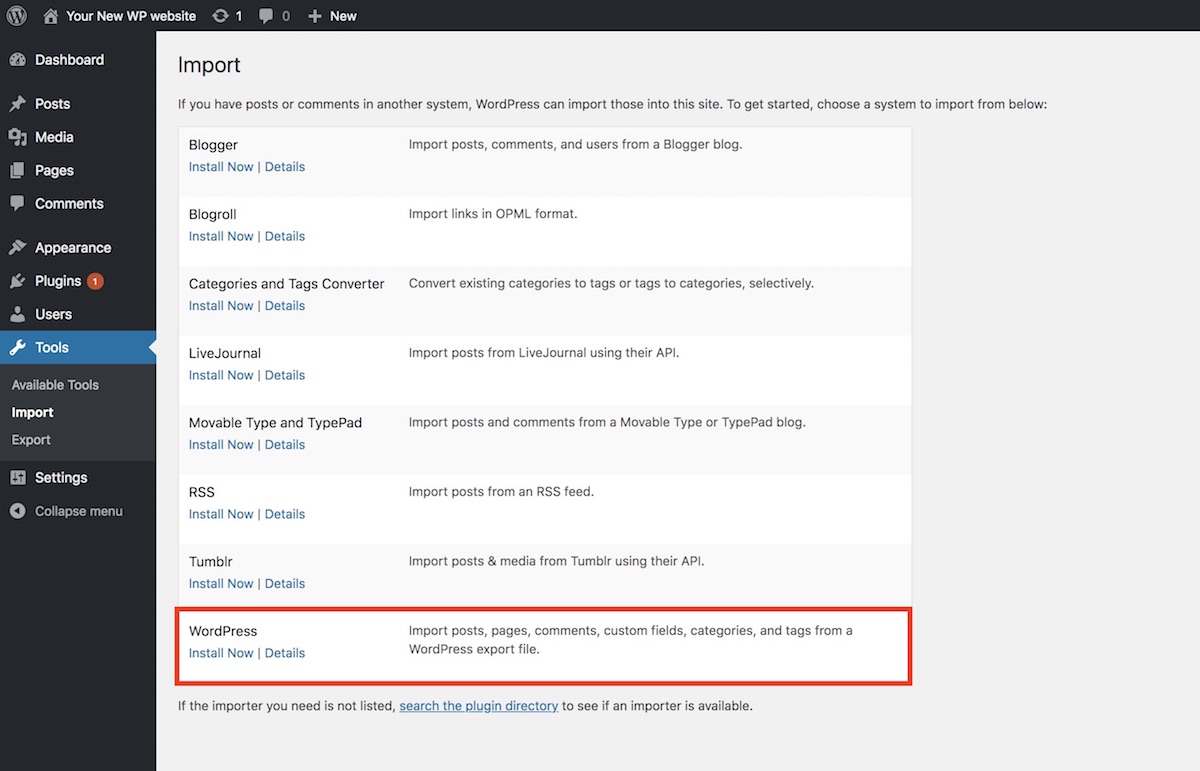
Go to your new host and install a new WP onto it. And login to the new WP site and move to Tools Import screen. The screen will list several system importers. Just click “Install Now” of the WordPress option.

You will then be asked for choosing an XML file to upload. Press “Choose file” button, find the exported XML file and then hit “Upload file and import”.

Your old posts, pages, comments, etc. will be imported into your new WP site. Check and adjust your Permalinks, Plugins, Theme and other settings. It is also recommended to backup your new WP database at this point. You are going to edit the database. And if an unexpected error occur during editing, the WP will stop showing its entire posts and pages.

Edit your new WP database

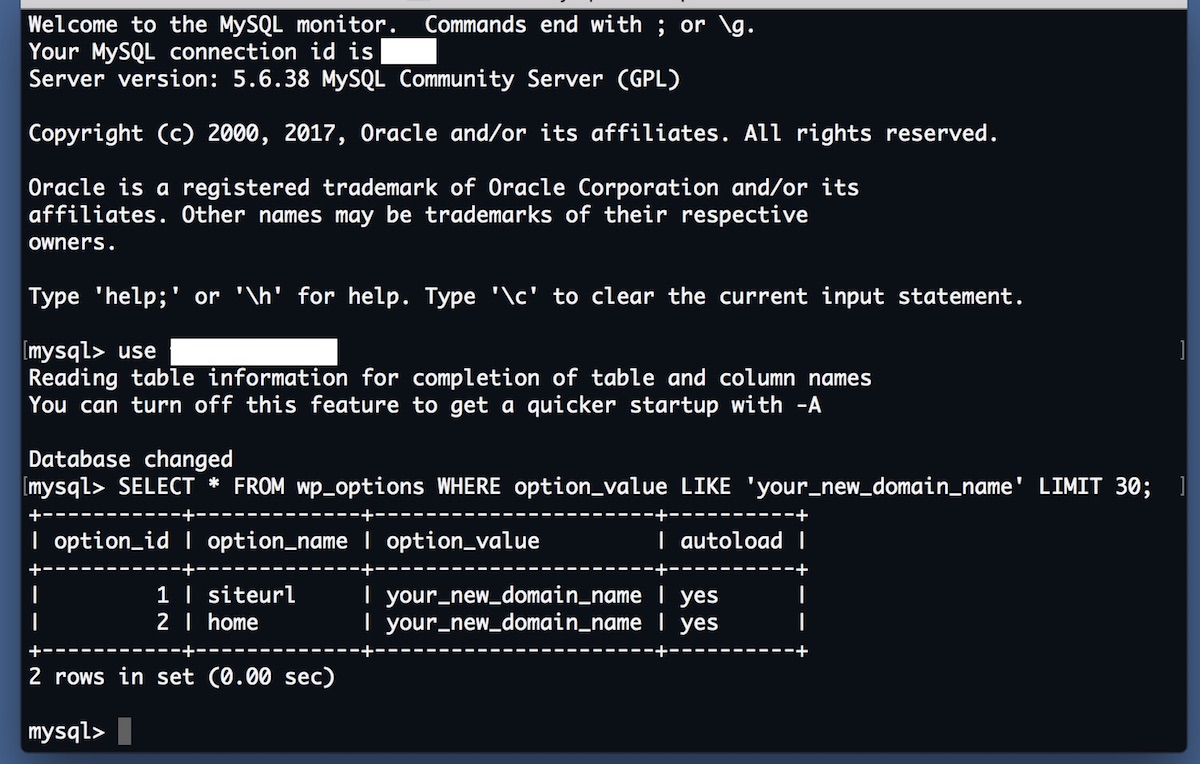
If your new WP site’s domain name is set to the previous one, please skip this part. Otherwise you need to edit your new WP database. Access the database using command line or phpMyAdmin. Select the “wp-options” table and find “siteurl” and then change “siteurl” option_value variable from the current one to the domain name of your old WP site. And then find “home” and assign the domain name to its option_value variable, too.

Once you succeed in editing the database, you will not be able to access your new WP site until you assign your domain to your new host. Keep that in mind.

Assign your domain to your new host

Login to your new hosting and find “Domains” section on the control panel. If you cannot find one, try using a search form. In the “Domains” section, you will most likely find “Assign” menu and be asked for the domain name that you would like to assign. Enter the domain name and change the nameservers for it. Once the nameservers are updated, all your Domain Name System (DNS) records for your domain will be overwritten to your new host. It may however take at most 24 – 48 hours to take effect. And your migration will be completed.

Android 初心者がフラグメントを使う話

Android アプリ開発の入門書を手に取ると、まず画面の作成に始まり、必要な部品を追加してメソッドを実装し、他の画面への遷移へと順に進む方針で書かれていることが一般的です。

そこでは基本的にアクティビティ (Activity) というコンポーネントを使用することを前提に話が進みます。

アクティビティは私のような初心者にも直感的に理解しやすく、書籍などの情報量も多いので、当然と言えば当然なのかもしれません。

一方で現在の Android アプリ開発では、入門書の例のようにアクティビティをふんだんに用いて実装を行うのではなく、より小さなフラグメント (Fragment) というコンポーネントを利用して、個々のアクティビティの役割を少なくする考えが主流になっています。

その背景にはアクティビティの役割が増えすぎて肥大化していたことや、異なる画面の大きさを持つ多くの機器への対応などが挙げられていますが、本題ではない上に長くなるので割愛します。

重要なことは、一般的な Android アプリ開発では多用されているフラグメントについて、アプリ開発の入門段階では使い方を知る術が限られていることです。

たとえインターネット上には豊富に情報があったとしても、知らないものは調べられないのです。


フラグメントを使用するとタブの切り替えによる画面表示の変更などを簡単に実装できます。

それどころか、入門書で作成しているサンプルアプリではアクティビティほど多用な機能は必要ない場合も多いので、フラグメントのみで画面遷移を実現できる場合も少なくありません。

フラグメントの簡単な使用方法はアクティビティ同様に、Java ファイルと XML ファイルを用意してアクティビティに追加してあげることです。

例えば Java ファイルを FooFragment.java として、その内容を以下のようにしてやれば、他に必要なことは2点のみです。

public class FooFragment extends Fragment {
    /* 省略 */
    @Override
    public View onCreateView(LayoutInflater inflater, ViewGroup container,
                             Bundle savedInstanceState) {
        View view = inflater.inflate(R.layout.fragment_foo, container, false);
        // view.findViewById() などで何かする場合にはここに実装
        return view;
    }
}

1点目はコード中の R.layout.fragment_foo で参照されている XML ファイル fragment_foo.xml を作成してあげること。

<android.support.constraint.ConstraintLayout
    xmlns:android="http://schemas.android.com/apk/res/android"
    xmlns:app="http://schemas.android.com/apk/res-auto"
    xmlns:tools="http://schemas.android.com/tools"
    android:layout_width="match_parent"
    android:layout_height="match_parent"
    tools:context="info.femoghalvfems.sample.FooFragment">
    <!-- 省略 -->
</android.support.constraint.ConstraintLayout>

もう1点目は作成したフラグメントをアクティビティに追加してあげることです。

public class MainActivity extends FragmentActivity
        implements FooFragment.OnFragmentInteractionListener
{
    @Override
    protected void onCreate(Bundle savedInstanceState) {
        super.onCreate(savedInstanceState);
        setContentView(R.layout.activity_main);
        FooFragment fragment = new FooFragment();
        FragmentTransaction transaction =
        getSupportFragmentManager().beginTransaction();
        transaction.add(R.id.layout_activity_main, fragment);
        transaction.commit();
    }
}

この時、追加するフラグメントの OnFragmentInteractionListener を実装してあげないと InflateException を吐いてアプリが落ちますので、忘れずに実装してください。

InflateException は他のエラーと同様に Android Monitor の logcat から確認できます。

E/AndroidRuntime: FATAL EXCEPTION: main
Process: info.femoghalvfems.sample, PID: 13994
                                                                                      java.lang.RuntimeException: Unable to start activity ComponentInfo{info.femoghlavfems.sample/info.femoghalvfems.sample.MainActivity}: android.view.InflateException: Binary XML file line #12:
Binary XML file line #12: Error inflating class fragment
### 省略 ###
Caused by: java.lang.RuntimeException:
info.femoghlavfems.sample.MainActivity@87ac4dd must implement OnFragmentInteractionListener

これでうまくビルドに成功すれば、アプリの立ち上げ画面からフラグメントのレイアウトを表示するようになります。

レイアウトを切り替えるにはフラグメントから FragmentManager を利用します。

public class FooFragment extends Fragment implements View.OnClickListener {
    /* 省略 */
    @Override
    public void onClick(View v) {
        FragmentManager manager = getActivity().getSupportFragmentManager();
        manager.beginTransaction().replace(R.id.layout_activity_main,
        BarFragment.newInstance("", "")).addToBackStack(null).commit();
    }
}

この時に忘れてはならないのは、追加されるアクティビティ (ここでは MainActivity) に追加するフラグメント (ここでは BarFragment) の OnFragmentInteractionListener を追加実装してあげることです。

このようにアクティビティと比較するとやや煩雑になってしまいますが、入門書で作成したサンプルアプリを使ってアクティビティからフラグメントを使用した構成に自分でコードを書き換えていくと、アプリ開発についての理解が深まって良い勉強になります。

そしてあまり入門書では触れられていない、FragmentTabHost を用いたタブの切り替えも簡単に行えるようになる点も見逃せません。